Unlike other version control system, which are delta-based version control, git thinks about its data more like a stream of snapshots.
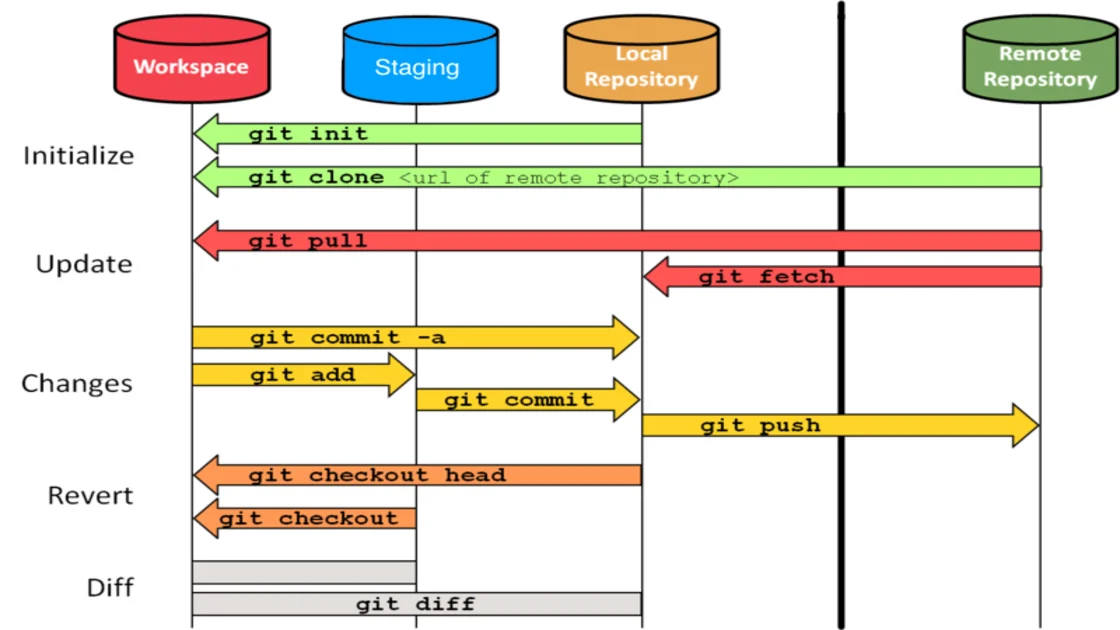
Git has three main states that your file can reside in.
modified - you have changed the file but have not committed it to your database yetstaged - you have marked a modified file in its current version to go into your next commit snapshotcommitted -data is safely stored in your local database
Installing Git
1
2
| $sudo apt install git-all # Debian-based distro
$brew install git # MacBook
|
For other platform:Installation Guide
First-Time Git Setup
There are few things to consider after installation of Git. I would suggest you to go through Page 21, 22 and 23 of Pro Git book.
1
2
| # Checking your settings
$git config --list
|
Getting Help
1
2
3
4
5
6
| $git help <verb>
$git <verb> --help
$man git-<verb>
#Example
$git help config
|
Git Basics
Initializing a repo
1
2
3
| $git init
$git --version # Output git version 2.46.0
|
1
2
3
4
5
6
7
8
9
10
11
12
13
14
15
16
17
18
19
20
21
22
23
24
25
26
27
28
29
30
31
32
33
| # Example of initializing git
$git init
hint: Using 'master' as the name for the initial branch. This default branch name
hint: is subject to change. To configure the initial branch name to use in all
hint: of your new repositories, which will suppress this warning, call:
hint:
hint: git config --global init.defaultBranch <name>
hint:
hint: Names commonly chosen instead of 'master' are 'main', 'trunk' and
hint: 'development'. The just-created branch can be renamed via this command:
hint:
hint: git branch -m <name>
Initialized empty Git repository in /Users/macbook/Library/CloudStorage/OneDrive-Personal/Repos/Git-to-know/.git/
# list the files created
$ls -a
. .. .git how-to-git.md
# changed the brach name to main
$git branch -m main
# checking the current git status
$git status
On branch main
No commits yet
Untracked files:
(use "git add <file>..." to include in what will be committed)
how-to-git.md
nothing added to commit but untracked files present (use "git add" to track)
|
On the above example I changed the branch name to main because GitHub changed the default branch name from master to main. However, Git itself still uses master as the default.
1
2
3
4
5
6
7
8
9
10
11
12
| # Tracking new file - means staged
$git add how-to-git.md
# Check status - it is staged i.e tracked
$git status
On branch main
No commits yet
Changes to be committed:
(use "git rm --cached <file>..." to unstage)
new file: how-to-git.md
|
Cloning a repo
1
2
3
| $git clone https://github.com/satishkarki/satishkarki.github.io.git # uses https protocol
$git:// or user@server:path/to/repo.git # uses SSH protocol, more on this later
|
git status
1
2
3
4
5
6
7
8
9
10
11
12
13
14
15
16
17
18
| # Long status
$git status
On branch main
No commits yet
Changes to be committed:
(use "git rm --cached <file>..." to unstage)
new file: how-to-git.md
Changes not staged for commit:
(use "git add <file>..." to update what will be committed)
(use "git restore <file>..." to discard changes in working directory)
modified: how-to-git.md
# Short status
$git status -s
AM how-to-git.md
|
Ignoring Files
Setting up a .gitignore file for your new repository is a good idea so you don’t accidentally commit files that you don’t want in your repo.
GitHub maintains a fairly comprehensive list of good .gitignore file examples for dozens of projects and languages at https://github.com/github/gitignore if you want a starting point for your project.
1
2
3
4
5
6
7
8
9
10
11
12
13
14
15
16
17
18
19
| # Example of .gitignore file
# ignore all .a files
*.a
# but do track lib.a, even though you're ignoring .a files above
!lib.a
# only ignore the TODO file in the current directory, not subdir/TODO
/TODO
# ignore all files in any directory named build
build/
# ignore doc/notes.txt, but not doc/server/arch.txt
doc/*.txt
# ignore all .pdf files in the doc/ directory and any of its subdirectories
doc/**/*.pdf
|
Recording Changes to Repo
git diff
The git diff shows you the exact lines added and removed- the patch, as it were.
1
2
3
4
| $git diff
$git diff --staged
$git difftool # Git Diff is an External tool
$git difftool --tool-help # To check what is available on your system
|
git commit
1
2
3
4
5
6
| $git commit # this will open an editor like vim, :q to quit (pro tip)
$git commit -m "My First Commit" # using -m flag
$git commit -a -m "Skipped Staging Area" # Skip Staging Area with -a flag
|
git rm
If you simply remove the file (rm file) from your working directory, it shows up under the “Changes not staged for commit” (that is, unstaged) area of your git status output:
1
2
3
4
5
6
7
8
9
10
11
12
13
14
| $rm remove-me.md
$git status
On branch main
Changes to be committed:
(use "git restore --staged <file>..." to unstage)
modified: how-to-git.md
new file: remove-me.md
Changes not staged for commit:
(use "git add/rm <file>..." to update what will be committed)
(use "git restore <file>..." to discard changes in working directory)
modified: how-to-git.md
deleted: remove-me.md
|
Then, if you run git rm, it stages the file’s removal. The next time you commit, the file will be gone and no longer tracked. If you modified the file or had already added it to the staging area, you must force the removal with the -f option. This is a safety feature to prevent accidental removal of data that hasn’t yet been recorded in a snapshot and that can’t be recovered from Git.
1
2
3
4
5
6
7
8
9
10
11
12
13
| $git rm remove-me.md
rm 'remove-me.md'
$git status
On branch main
Changes to be committed:
(use "git restore --staged <file>..." to unstage)
modified: how-to-git.md
Changes not staged for commit:
(use "git add <file>..." to update what will be committed)
(use "git restore <file>..." to discard changes in working directory)
modified: how-to-git.md
|
Moving files
1
| $git mv files_from files_to # It is same as mv command
|
Viewing Commit History
1
2
3
4
5
6
7
8
9
10
11
12
13
14
| $git log
$git log -p -2 # or --patch shows the difference introduced in each commit, -2 to show only last two entries
$git log --stat
$git log --pretty=oneline # other options are short, full, fuller
$git log --pretty=format:"%h - %an, %ar : %s"
$git log -S function_name # takes a string and shows only those commits that changed the number of occurrences of that string
$git log -- path/to/file #limit the log output to commits that introduced a change to those files
|
Examples:
1
2
3
4
5
6
7
8
9
10
11
12
13
14
15
16
17
18
| $git log
commit ecb24 (HEAD -> main)
Author: MacBook <macbook@MacMan.local>
Date: Sat Nov 29 00:28:44 2025 -0500
Topic completed upto move files
commit f23f6
Author: MacBook <macbook@MacMan.local>
Date: Fri Nov 28 23:52:10 2025 -0500
second commit
commit 64562 #SHA-1 Checksum
Author: MacBook <macbook@MacMan.local>
Date: Fri Nov 28 23:49:19 2025 -0500
First Commit
|
1
2
3
4
5
6
7
8
9
| $git log --stat -1
commit ecb24 (HEAD -> main)
Author: MacBook <macbook@MacMan.local>
Date: Sat Nov 29 00:28:44 2025 -0500
Topic completed upto move files
how-to-git.md | 21 ++++++++++++++++++++-
1 file changed, 20 insertions(+), 1 deletion(-)
|
1
2
3
4
| $git log --pretty=oneline
ecb24 (HEAD -> main) Topic completed upto move files
f23f6 second commit
64562 First Commit
|
1
2
3
4
| $git log --pretty=format:"%h - %an, %ar : %s"
ecb242d - MacBook, 15 minutes ago : Topic completed upto move files
f23f6c2 - MacBook, 52 minutes ago : second commit
6456246 - MacBook, 55 minutes ago : First Commit
|
Undoing Things
1
| $git commit --amend # Amends changes to latest commit without creating new commit
|
Example
1
2
3
4
5
6
7
8
9
10
11
12
13
14
15
16
17
| # Before git commit --amend
$git log --pretty=oneline
c17c8 (HEAD -> main) Topic added upto vewing commits
ecb24 Topic completed upto move files
f23f6 second commit
64562 First Commit
$git commit --amend
# After git commit --amend
$git log --pretty=oneline
ad7d3 (HEAD -> main) this is the commit after ammend
ecb24 Topic completed upto move files
f23f6 second commit
64562 First Commit
|
On the above example, if you check the checksum of the last commit, they are different, because amend doesn’t add to the last commit, new commit is created and it will act like the previous commit never happend.
Unstaging a Staged file
1
2
3
| $git reset HEAD <file>
$git restore --staged <file> # same as reset, it was introduced in Git v2.23.0
|
Example:
1
2
3
4
5
6
7
8
9
10
11
12
13
14
15
16
17
18
19
20
21
|
# both files are staged
$echo 'This is test to check undo staged file feature' > unstage-me.md
$git add *
$git status
On branch main
Changes to be committed:
(use "git restore --staged <file>..." to unstage)
modified: how-to-git.md
new file: unstage-me.md
$git reset HEAD unstage-me.md
$git status
On branch main
Changes to be committed:
(use "git restore --staged <file>..." to unstage)
modified: how-to-git.md
Untracked files:
(use "git add <file>..." to include in what will be committed)
unstage-me.md
|
Unmodifying a Modified File
1
2
| $git checkout -- <file>
$git restore <file>
|
Working with Remotes
Until now, I only had local repo and I didn’t have a remote repo. So I went to GitHub and created the repo and pushed the code.
1
2
3
| $git remote add origin https://github.com/satishkarki/how-to-git.git
$git push -u origin main
|
Showing your remotes
1
2
3
4
5
6
| $git remote
origin
$git remote -v
origin https://github.com/satishkarki/how-to-git.git (fetch)
origin https://github.com/satishkarki/how-to-git.git (push)
|
Adding remote repos
1
2
3
4
5
6
7
8
| # git remote add <shortname> <URL>
$git remote add pb https://github.com/johndoe/how-to-git.git
# git remote -v
origin https://github.com/satishkarki/how-to-git.git (fetch)
origin https://github.com/satishkarki/how-to-git.git (push)
pb https://github.com/johndoe/how-to-git.git (fetch)
pb https://github.com/johndoe/how-to-git.git (push)
|
Fetching and Pulling
1
2
3
| $git fetch <remote> # It only downlaods the data to local repo, it doesn't automatically merge
$git pull # it will merge
|
Pushing to remote
1
| $git push <remote> <branch> # git push origin main
|
Warning !!
If you and someone else cloned it and someone push it upstream before you. Your push will be rejected. You will have to fetch that upstream push and incorporate into your code to push.
Inspecting a remote
1
| $git remote show origin
|
Example
1
2
3
4
5
6
7
8
9
10
11
| $git remote show origin
* remote origin
Fetch URL: https://github.com/satishkarki/how-to-git.git
Push URL: https://github.com/satishkarki/how-to-git.git
HEAD branch: main
Remote branch:
main tracked
Local branch configured for 'git pull':
main merges with remote main
Local ref configured for 'git push':
main pushes to main (up to date)
|
This command is helpful to tell you if you are on the master/main branch and you run git pull , it will automatically merge the remote’s master/main branch into the local one after it has been fetched.
Renaming and Removing Remotes
1
2
3
| $git remote rename pb paul
$git remote remove paul
|
Git Tagging
This functionality is used to mark release points.
1
2
3
| # Listing Tags
$git tag
$git tag -l "v2.0" # --list is also same
|
1
2
3
| $git tag -a v1.0 -m "my version 1.0" # Annotated Tag
$git tag v1.5-lw # LightWeight Tag
$git tag -a v1.6 ecb242d # Tagging later
|
1
2
3
4
5
6
7
8
9
10
11
12
13
14
15
16
17
18
19
20
21
| # Example
$git show v1.0
tag v1.0
Tagger: MacBook <macbook@MacMan.local>
Date: Sat Nov 29 22:41:28 2025 -0500
my version 1.0
commit ff194 (HEAD -> main, tag: v1.0, origin/main)
Author: MacBook <macbook@MacMan.local>
Date: Sat Nov 29 21:37:31 2025 -0500
Beginning of git remote topic
$git log --pretty=oneline
ff194 (HEAD -> main, tag: v1.0, origin/main) Beginning of git remote topic
ad7d3 this is the commit after ammend
ecb24 Topic completed upto move files
f23f6 second commit
64562 First Commit
|
1
2
3
4
5
6
7
| # Lightweight tag
$git log --pretty=oneline
ff194 (HEAD -> main, tag: v1.5-lw, tag: v1.0, origin/main) Beginning of git remote topic
ad7d3 this is the commit after ammend
ecb24 Topic completed upto move files
f23f6 second commit
64562 First Commit
|
1
2
3
| $git push origin <main> # git push origin v1.0
$git push --tags # For multiple tags
$git push <remote> --follow-tags # push only annotated tags
|
By default, the git push command doesn’t transfer tags to remote servers. There is currently no option to push only lightweight tags.
1
2
3
4
5
6
| $git tag -d <tagname>
$git push <remote> :refs/tags/<tagname>
# or
$git push origin --delete <tagname>
|
1
2
3
4
5
6
7
8
9
10
11
12
13
14
15
16
17
18
19
20
21
22
23
24
25
| # Example
# Git log before tag deletion
$git log --pretty=oneline
ff194 (HEAD -> main, tag: v1.5-lw, tag: v1.0, origin/main) Beginning of git remote topic
ad7d3 this is the commit after ammend
ecb24 Topic completed upto move files
f23f6 second commit
64562 First Commit
# Removing annotated tag
$git tag -d v1.0
Deleted tag 'v1.0' (was 321cc86)
# Removing lightweight tag
$git tag -d v1.5-lw
Deleted tag 'v1.5-lw' (was ff194fe)
# Git log after tag deletion
$git log --pretty=oneline
ff194 (HEAD -> main, origin/main) Beginning of git remote topic
ad7d3 this is the commit after ammend
ecb24 Topic completed upto move files
f23f6 second commit
64562 First Commit
|
Tips!!
You can check out the tag as well. For this I would suggest check page 60 of Pro Git book.
Git Aliases
If you don’t want to type the entire command, you can setup alias using git config
1
2
3
4
| $git config --global alias.co checkout
$git config --global alias.br branch
$git config --global alias.ci commit
$git config --global alias.st status
|
Example
1
2
3
4
| $git config --global alias.unstage 'reset HEAD --'
# This makes the following command equivalent
$git unstage fileA
$git reset HEAD -- fileA
|
At this point, you can do all the basic local Git operation. Next we will look at the Git’s killer feature: its branching model.
Reference
https://gitimmersion.com/lab_01.html
https://learngitbranching.js.org/
https://git-scm.com/book/en/v2