Git Branching
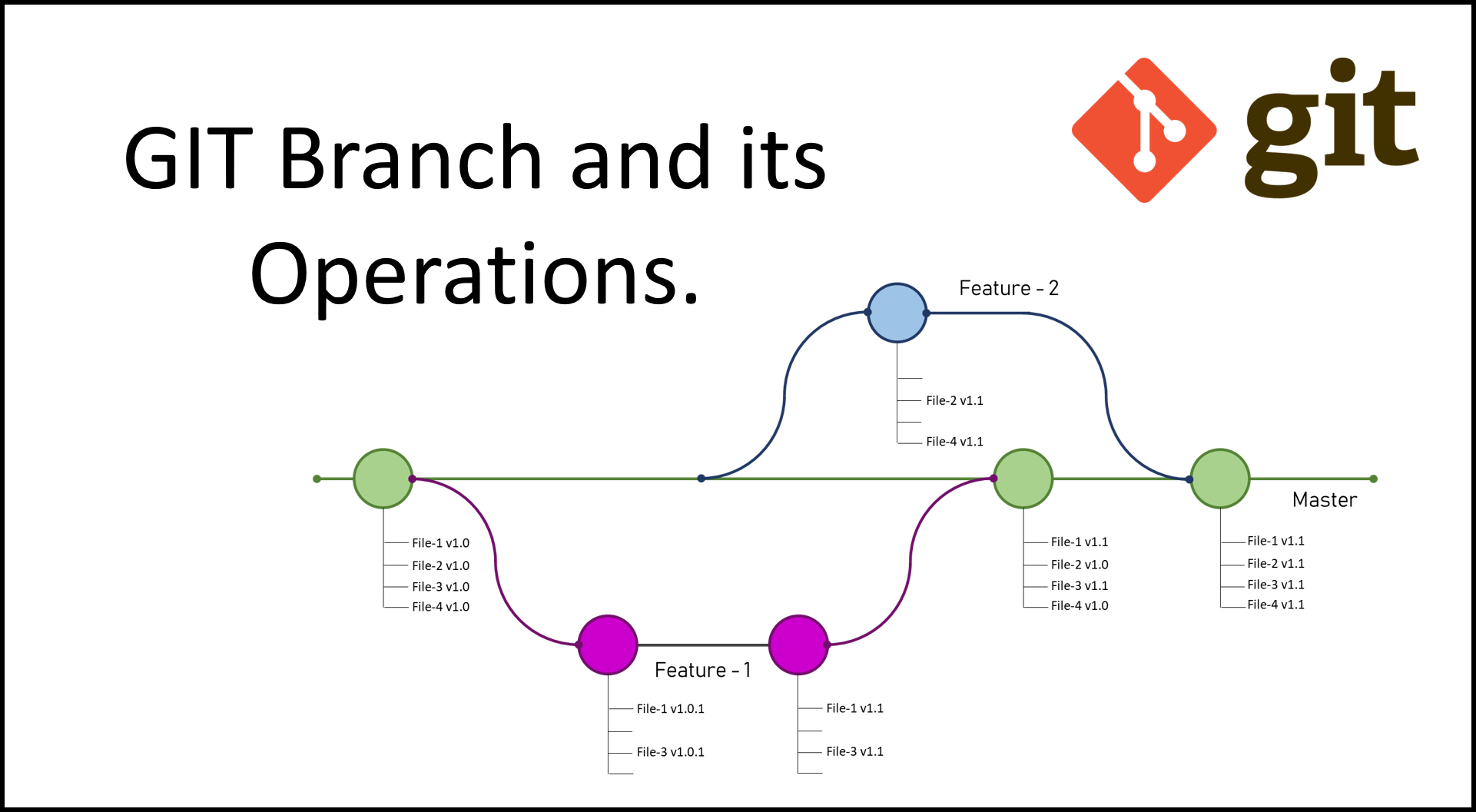
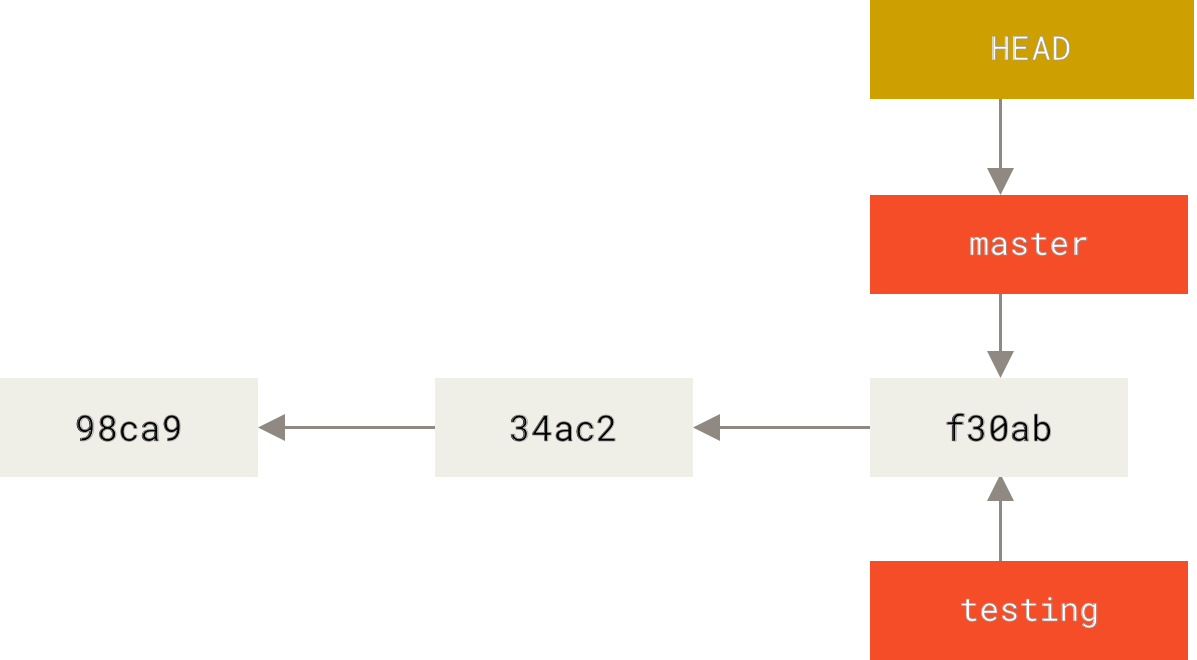
A branch in Git is simply a lightweight movable pointer to one of the commits. The default branch name in Git is master/main. As you start making commit, you’re given a master branch that points to the last commit you made. Every time you commit, the master branch pointer moves forward automatically.
1
git branch testing
Example
1
2
3
4
5
6
7
$git branch testing

$git log --oneline --decorate --graph --all
* 5df03d0 (HEAD -> main, origin/main, testing)  First commit of Git Branching
* 7034b0d Git Basic topic complete
* 98e3b1e  Beginning of Git Aliases topic
...
On the example above, the special pointer HEAD is pointing to main
Switching Branches
1
2
3
4
5
$git checkout testing # This moves HEAD to point to testing branch

$git checkout -b <new-branch> # Create and checkout in one command

$git switch -c <new-branch> # Starting Git v2.23
Output
1
2
3
4
5
6
7
$git checkout testing
Switched to branch 'testing'

$git log --oneline --decorate --graph --all
* 5df03d0 (HEAD -> testing, origin/main, main)  First commit of Git Branching
* 7034b0d Git Basic topic complete
* 98e3b1e  Beginning of Git Aliases topic
Modifying the branch
1
2
3
4
$echo "this is a test to check the branch feature" > testing-branch.md
$git add testing-branch.md
$git commit -a -m "First commit of testing branch"
$git log --oneline --decorate --graph --all
output
1
2
3
4
5
6
$git log --oneline --decorate --graph --all
* 616c359 (HEAD -> testing) First commit of testing branch
* 5df03d0 (origin/main, main)  First commit of Git Branching
* 7034b0d Git Basic topic complete
* 98e3b1e  Beginning of Git Aliases topic
* ad7d380 this is the commit after ammend
To check log
1
2
3
$git log # checks log of main branch
$git log testing # checks log of testing branch only
$git log--all #checks log of all branch
Output
1
2
3
4
5
6
7
8
9
10
11
12
$git log --pretty=oneline
5df03 (HEAD -> main, origin/main)  First commit of Git Branching
7034b Git Basic topic complete
98e3b  Beginning of Git Aliases topic
...

$git log testing --pretty=oneline
616c3 (testing) First commit of testing branch
5df03 (HEAD -> main, origin/main)  First commit of Git Branching
7034b Git Basic topic complete
98e3b  Beginning of Git Aliases topic
...
Divergent History
You made some changes in testing branch and came back to main branch, made some changes here- your project history has diverged. 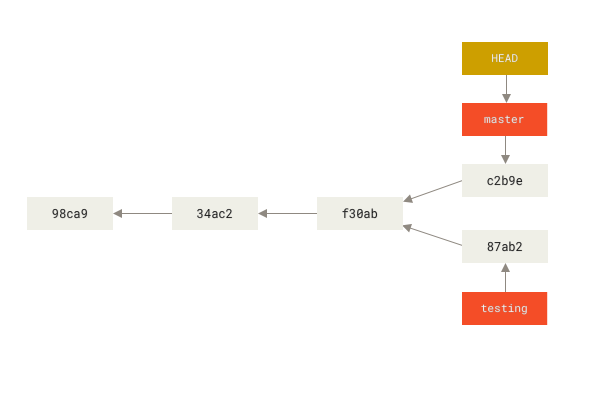
Example
1
2
3
4
5
6
7
$git log --oneline --decorate --graph --all
* 3fbd727 (HEAD -> main) commit to create divergent
| * 616c359 (testing) First commit of testing branch
|/
* 5df03d0 (origin/main)  First commit of Git Branching
* 7034b0d Git Basic topic complete
* 98e3b1e  Beginning of Git Aliases topic
Basic Branching and Merging
It is best to have a clean working state when you switch branches. If your working directory or staging area has uncommitted changes that conflict with the branch you are checking out, Git won’t let you switch branches. There are ways to get around it bit more on that later in Stashing and Cleaning.
1
2
3
4
5
6
7
8
9
10
11
12
13
14
15
16
17
$git checkout -b hotfix
$echo "This is an example of hotfix" > hotfix.md
$git add hotfix.md
$git commit -m "The hotfix has been applied"

# Now if we check the git log
# Output
$git log --oneline --decorate --graph --all
* 22f66f9 (HEAD -> hotfix) The hotfix has been applied
* 83fd752 (main) commit to create divergent
| * 616c359 (testing) First commit of testing branch
|/
* 5df03d0 (origin/main)  First commit of Git Branching
* 7034b0d Git Basic topic complete
* 98e3b1e  Beginning of Git Aliases topic
* ad7d380 this is the commit after ammend
...
Now lets merge this hotfix to our main. In the example, I do have the diverged testing branch, more on that later but for now, lets merge the hotfix.
1
2
$git checkout main
$git merge hotfix
1
2
3
4
5
6
7
8
9
10
11
12
13
14
15
16
17
18
19
20
21
#Output
$git checkout main
Switched to branch 'main'
Your branch is ahead of 'origin/main' by 1 commit.
  (use "git push" to publish your local commits)

$git merge hotfix
Updating 83fd752..22f66f9
Fast-forward
 hotfix.md | 1 +
 1 file changed, 1 insertion(+)
 create mode 100644 hotfix.md

$git log --oneline --decorate --graph --all
* 22f66f9 (HEAD -> main, hotfix) The hotfix has been applied
* 83fd752 commit to create divergent
| * 616c359 (testing) First commit of testing branch
|/
* 5df03d0 (origin/main)  First commit of Git Branching
* 7034b0d Git Basic topic complete
...
The git log output is similar to this diagram. 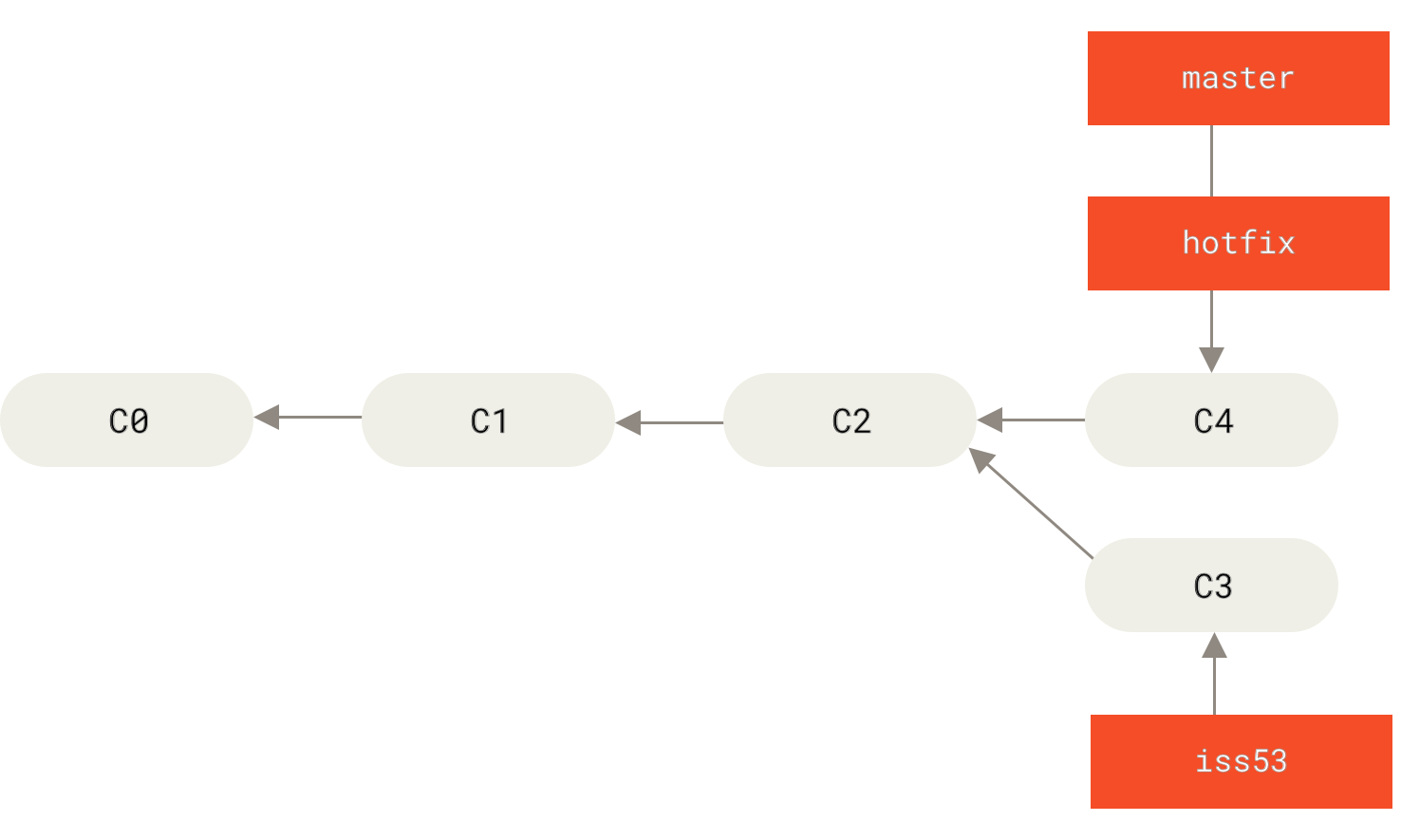
Changing the name of a branch like master/main/mainline/default will break the integrations, services, helper utilities and build/release scripts that your repository uses. Also, make sure you do a thorough search through your repo and update any references to the old branch name in your code and scripts.
Now lets delete the hotfix branch and check the log again.
1
2
$git branch -d hotfix
$git log --oneline --decorate --graph --all
1
2
3
4
5
6
7
8
9
10
11
12
# Output
$git branch -d hotfix
Deleted branch hotfix (was 22f66f9).

$git log --oneline --decorate --graph --all
* 22f66f9 (HEAD -> main) The hotfix has been applied
* 83fd752 commit to create divergent
| * 616c359 (testing) First commit of testing branch
|/
* 5df03d0 (origin/main)  First commit of Git Branching
* 7034b0d Git Basic topic complete
...
Merging
Lets say, now we are back to our testing branch and we want to apply the fix from hotfix to our testing branch, then we can use git merge main 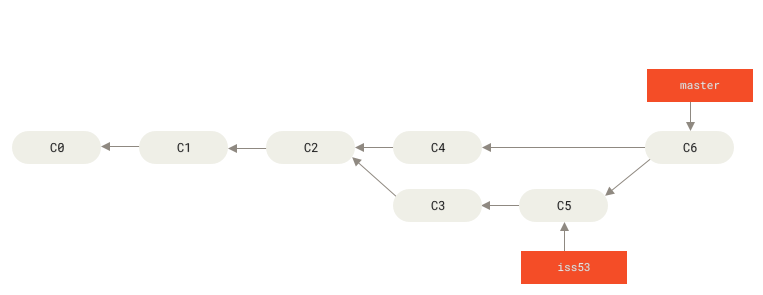
1
2
$git checkout testing
$git merge main
Output
1
2
3
4
5
6
7
8
9
10
11
$git log --oneline --decorate --graph --all

*   4d4b95f (HEAD -> testing) Merge branch 'main' into testing
|\
| * c272b9e (main) The hotfix has been applied
| * 83fd752 commit to create divergent
* | 616c359 First commit of testing branch
|/
* 5df03d0 (origin/main)  First commit of Git Branching
* 7034b0d Git Basic topic complete
...
Now lets merge the testing to main
1
2
3
$git checkout main
$git merge testing
$git branch -d testing
Output
1
2
3
4
5
6
7
8
9
10
11
12
13
14
15
16
17
18
# This output is without deleting testing branch
$git log --oneline --decorate --graph --all

*   4d4b95f (HEAD -> main, testing) Merge branch 'main' into testing
|\
| * c272b9e The hotfix has been applied
| * 83fd752 commit to create divergent
* | 616c359 First commit of testing branch
|/
* 5df03d0 (origin/main)  First commit of Git Branching
* 7034b0d Git Basic topic complete
...

# First line of output with branch deleted
git log --oneline --decorate --graph --all

*   4d4b95f (HEAD -> main) Merge branch 'main' into testing
...
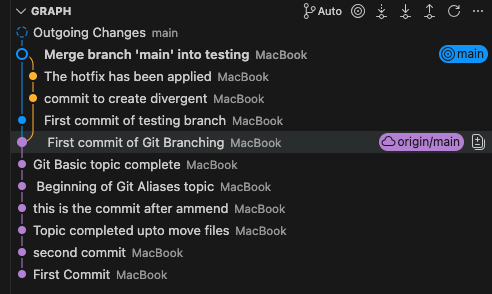
In case if you want to visualize it in VS Code
Basic Merge Conflicts
Here I created a branch hotfix2 and made changes to hotfix.md file. I committed the change and checked out main branch. I again made changes to hotfix.md and committed the change. Then I tried to merge the hotfox2 branch to main. I get the following error:
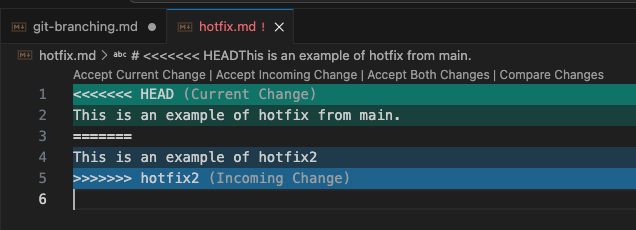
This is in VS Code but you can also run git mergetool for other graphical tools.
1
2
3
4
5
6
7
8
9
10
11
12
13
$git merge hotfix2
Auto-merging hotfix.md
CONFLICT (content): Merge conflict in hotfix.md
Automatic merge failed; fix conflicts and then commit the result.

$git status
You have unmerged paths.
  (fix conflicts and run "git commit")
  (use "git merge --abort" to abort the merge)

Unmerged paths:
  (use "git add <file>..." to mark resolution)
        both modified:   hotfix.md
In order to resolve the conflict, you have to choose one side or the other or merge the contents yourself. For example, here I changed the content of the hotfix.md file from main branch, committed the changes and merged again.
1
2
3
4
5
6
7
8
9
10
11
12
13
14
15
$git log --oneline --decorate --all --graph
*   3564d78 (HEAD -> main) merge conflict checked
|\
| * 4bbd11f (hotfix2) This is the second commit of hotfix2
| * 6e12a44 This is a commit of hot fix2
* | c7f19ae hotfix.md file changed from main
|/
*   6d26878 Merge branch 'main' into testing
|\
| * c272b9e The hotfix has been applied
| * 83fd752 commit to create divergent
* | 616c359 First commit of testing branch
|/
* 5df03d0 (origin/main)  First commit of Git Branching
* 7034b0d Git Basic topic complete
Branch Management
1
2
3
4
5
6
7
8
9
10
11
$git branch # List current branch
$git branch -v # Shows last commit on each branch
$git branch --merged # Shows merged branch
$git branch --no-merged # Shows branched that are yet to merge
$git branch -D hotfix2 # Force deletion of unmerged branch
$git branch --move bad-branch-name corrected-branch-name # This change is local
$git push --set-upstream origin corrected-branch-name # To let others see the corrected branch on the remote
$git push origin --delete bad-branch-name # To delete it upstream
$git branch --move master main # Rename local master branch into main
$git push --set-upstream origin main #push the changes upstream
$git push origin --delete master # push it upstream
Danger!!
Changing the name of a branch like master/main/mainline/default will break the integrations, services, helper utilities and build/release scripts that your repository uses. Also, make sure you do a thorough search through your repo and update any references to the old branch name in your code and scripts.
Remote Branches
1
2
$git ls-remote <remote> # or
$git remote show <remote>
‘origin’ is not special
1
$git clone -o notoriginal
Then you will have notorigianl/master as your default remote branch.
Example 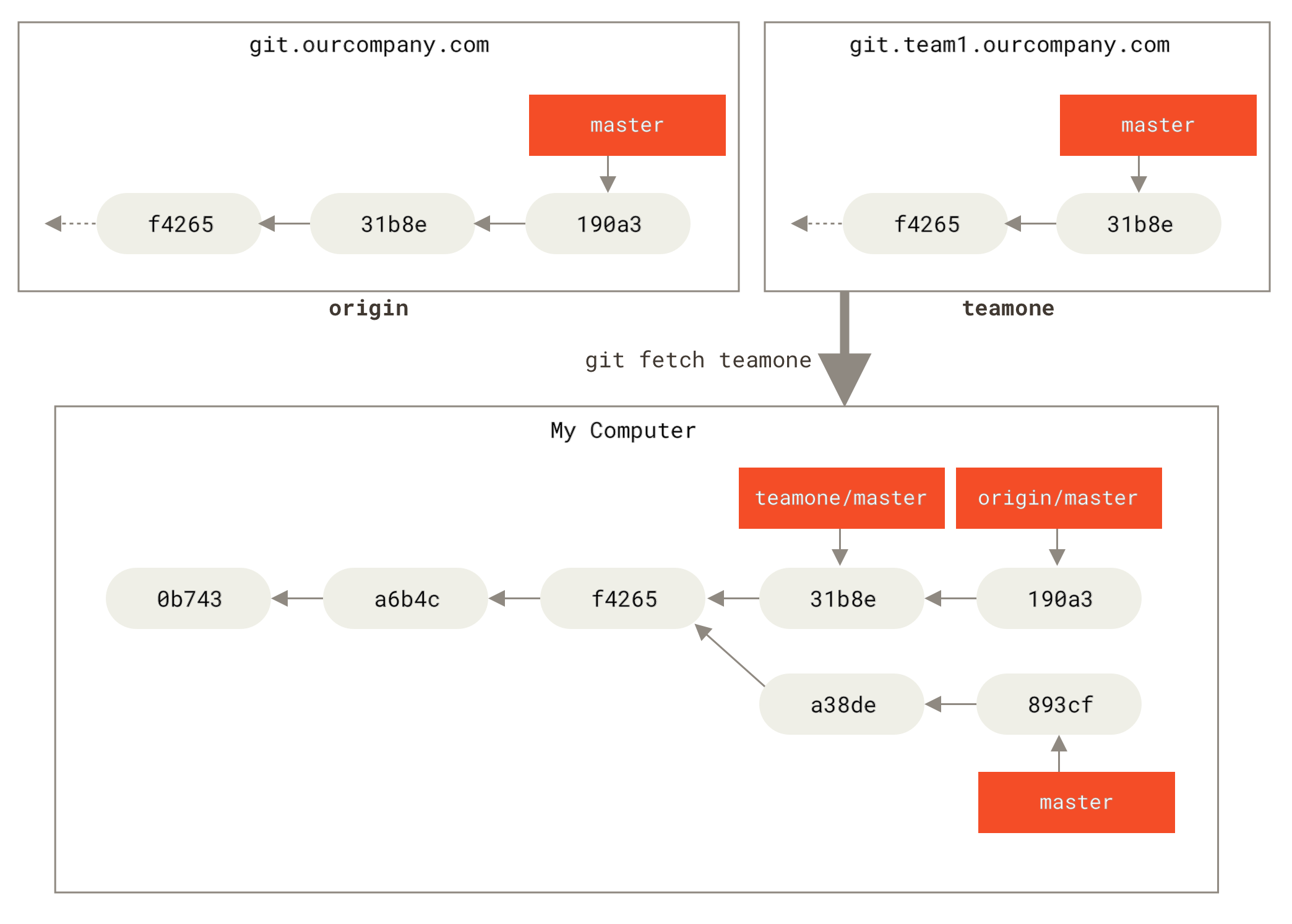
1
2
$git remote add teamone
$git fetch teamone
Pushing
1
2
3
4
5
$git push <remote> <branch> # Example $git push origin serverfix
OR
$git push origin serverfix:serverfix #Take my serverfix and make it the remote's serverfix

$git push origin serverfix:awesomebranch # push your local serverfix branch to the awesomebranch on the remote project
1
2
3
4
5
$git fetch origin
$git merge origin/serverfix
$git checkout -b serverfix origin/serverfix # Branch serverfix set up to track remote branch serverfix from origin

$git fetch --all; git branch -vv #This will list out your local branches with more information including what each branch is tracking and if your local branch is ahead, behind or both.
Pulling
1
$git pull # It is git fetch followed by git merge
Deleting Remote Branch
1
$git push origin --delete serverfix # Deleting remote branch
Rebasing
In Git, there are two main ways to integrate changes from one branch into another: the merge and the rebase.
The picture below is an example of git merging 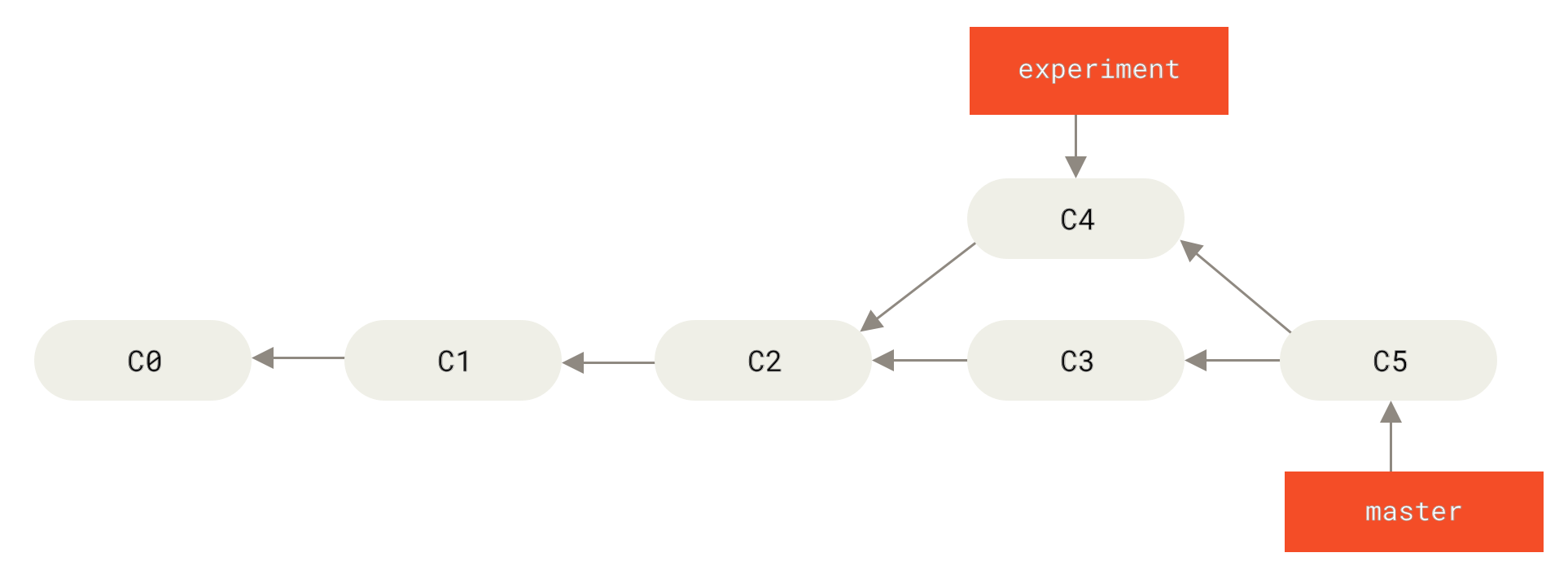
Instead of doing show lets say we do this:
1
2
3
4
$git checkout experiment
$git rebase master
First, rewinding head to replay your work on top of it...
Applying: added staged
What happened?
This operation works by going to the common ancestor of the two branches (the one you’re on and the one you’re rebasing onto), getting the diff introduced by each commit of the branch you’re on, saving those diffs to temporary files, resetting the current branch to the same commit as the branch you are rebasing onto, and finally applying each change in turn.
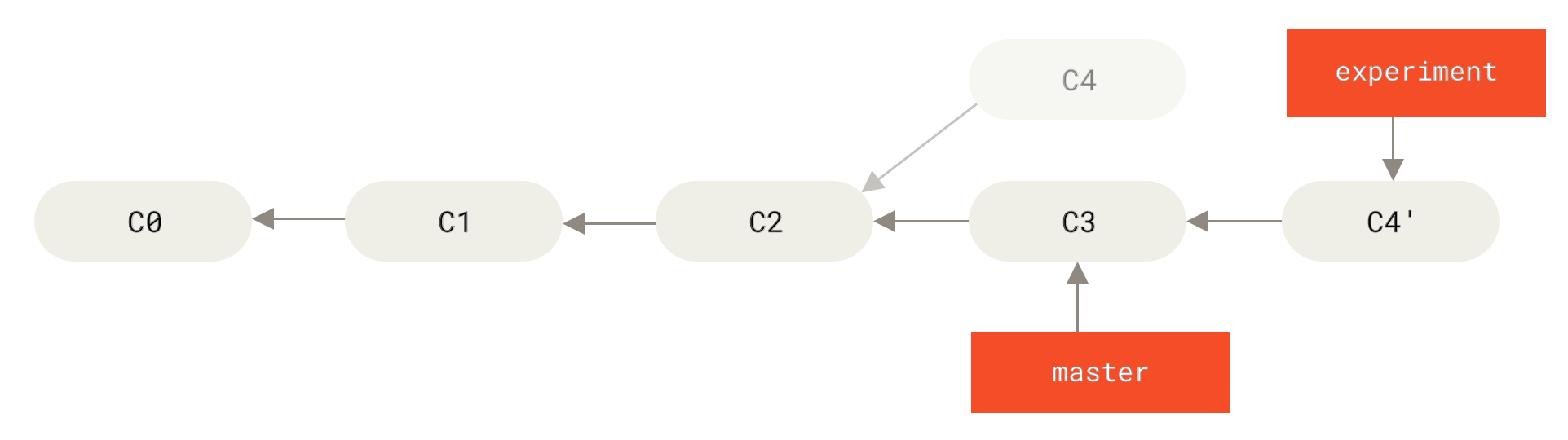 Figure: Rebasing the changes introduced in C4 onto C3
Now lets go back to the master branch
1
2
$git checkout master
$git merge experiment
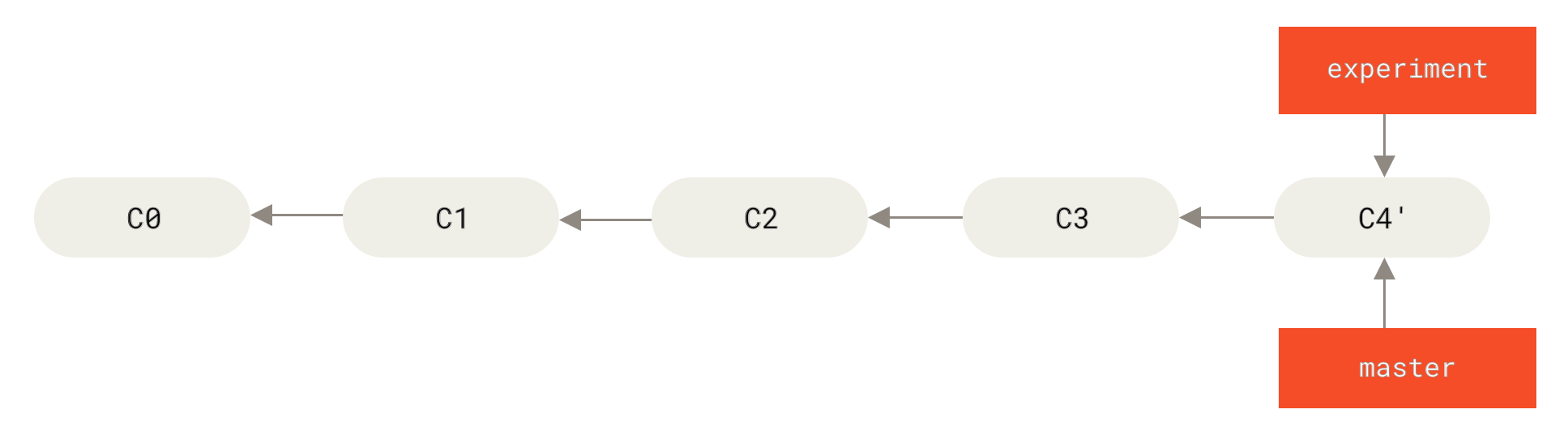 Figure: Fast-forwarding the master branh
Now the snapshot of C4’ is exactly the same as C5 (from 3-way merging).
Safe rule of thumb
- Rebase → local/private feature branches (before sharing)
- Merge → public/shared branches (like main, develop, or someone else’s PR)
Advanced rebase
1
$git rebase <basebranch> <topicbranch>
I would suggest checking Pro Git book page 97-99 for more details.
The Perlis of Rebasing, page 100-103.
Reference
https://gitimmersion.com/lab_01.html