How User Space Starts?

Userspace “starts” at the exact moment the kernel successfully executes the first userspace program, called PID 1. Everything after that - services, login, networking - is launched by PID 1 (directly or indirectly).
Lets check, what is running as PID 1 in my WSL.
1
2
3
4
5
$ ps -p 1 -o pid,comm,args

# Output
PID     COMMAND         COMMAND
1       systemd         /sbin/init
Intro to init
Init (short for “initialization”) is the very first process that the Linux kernel starts after the system boots.
Three main init listed in terms of efficency:
system V < upstart < systemd
Runlevels and systemd targets
Runlevels belongs to old Sys V init where as targets belongs to modern systemd init.
Both are ways to define different “modes” or states that a Linux system can be in after booting — like “normal multi-user mode”, “single-user maintenance mode”, “graphical desktop mode”, “shutdown”, etc.
1
2
3
4
5
# Example of Target
$ ls /etc/systemd/system/sysinit.target.wants/

apparmor.service        setvtrgb.service        systemd-resolved.service
keyboard-setup.service  systemd-pstore.service  systemd-timesyncd.service
1
2
3
# To check system's run level
$ who -r
run-level 5  2026-02-18 13:54
systemd
Boot Flow
1
2
3
4
5
6
7
8
9
10
kernel → systemd (PID 1)
            ↓
   activates default.target
            ↓ (symlink)
   → graphical.target    OR    → multi-user.target
            ↓                              ↓
   starts display-manager       starts getty (text logins),
   (GDM/SDDM/…)                 cron, sshd, networking…
            ↓
   → login screen / desktop
If I check my WSL, here is the current default target
1
2
3
4
$ systemctl get-default

# Output
graphical.target
Ok, so what is a target? - A target is like a milestone or checkpoint during boot. It groups together many services/units that should be started together.
- multi-user.target : Full console/server mode
- graphical.target : Full desktop/graphical mode
So Target is a collection of Units. What are units? - These are the building blocks- almost everything systemd does is “activate/deactivate/manage a unit”.
Example
1
2
3
4
5
6
7
8
9
10
11
12
# .mount unit
[Unit]
Description=Mount /data

[Mount]
What=/dev/sdb1
Where=/data
Type=ext4
Options=defaults

[Install]
WantedBy=multi-user.target
Handy Commands to Explore Units
1
2
3
4
5
6
7
8
9
10
11
12
13
14
15
16
# List all possible unit types
systemctl --type=help

# List all loaded units of a type
systemctl list-units --type=service
systemctl list-units --type=target

# Show everything systemd knows about a unit
systemctl cat nginx.service
systemctl show nginx.service

# List dependencies (what starts when this starts)
systemctl list-dependencies multi-user.target

# Find all timer units
systemctl list-timers --all
Unit Types
1
2
3
4
5
6
7
8
9
10
11
12
13
14
15
$ systemctl --type=help

# Output
Available unit types:
service # A process/daemon you want to start, stop, restart, supervise
mount # A filesystem mount point
swap # A swap file or partition
socket # A network socket, Unix socket, or FIFO — for socket activation
target # A synchronization point / group of other units (like old runlevels)
device # A kernel device (usually auto-generated from udev)
automount # On-demand mounting (mount only when accessed)
timer # A cron-like timer that activates another unit
path # Watches a file or directory for changes → activates a service
slice # A group for resource control (cgroups v2)
scope # Externally started processes grouped by systemd (e.g. via D-Bus)
systemd configuration
When someone says systemd configuation, they usually means unit configuration file. We looked at the example of .mount unit above in systemd section.
As mentioned before, units are the building block of systemd.
Core Structure
1
2
3
4
5
6
7
8
9
10
11
12
13
# Comments start with # or ; (ignored by systemd)
# Empty lines are also ignored

[SectionName]
Directive1=value
Directive2=value
Directive3=value1 value2 value3   # space-separated lists are common
Directive4="value with spaces or special chars"

[AnotherSection]
DirectiveA=yes
DirectiveB=no
DirectiveC=30s                    # many values support units like s, ms, min, h, etc.
Example
1
2
3
4
5
6
7
8
9
10
11
12
13
14
15
16
 [Unit]
Description=Nginx HTTP and reverse proxy server
Documentation=man:nginx(8)
After=network.target remote-fs.target nss-lookup.target

[Service]
Type=forking
PIDFile=/run/nginx.pid
ExecStartPre=/usr/sbin/nginx -t -q -g 'daemon on; master_process on;'
ExecStart=/usr/sbin/nginx -g 'daemon on; master_process on;'
ExecReload=/usr/sbin/nginx -g 'daemon on; master_process on;' -s reload
TimeoutStopSec=5
KillMode=mixed

[Install]
WantedBy=multi-user.target
systemd operation
systemctl is the main command-line tool for managing systemd. It lets you start/stop/reload units, check status, manage boot behavior (enable/disable), inspect the system, and more.
Request to activate, reactivate, and restart units are called jobs in systemd.
1
$ systemctl list-jobs
Key difference: reload vs restart
- reload → graceful, no downtime (sends SIGHUP or similar to the process)
- restart → full stop + start → brief downtime, but ensures clean state
1. Basic Service Control (start / stop / restart / reload)
| Command | What it does | Example | When to use it |
|---|---|---|---|
systemctl start <unit> | Activates (starts) the unit if it’s not already running | sudo systemctl start nginx.service | Launch a stopped service |
systemctl stop <unit> | Deactivates (stops) the unit cleanly | sudo systemctl stop nginx.service | Gracefully shut down |
systemctl restart <unit> | Stops then starts the unit again (full cycle) | sudo systemctl restart nginx.service | After config change that requires full restart |
systemctl reload <unit> | Tells the unit to reload its configuration without stopping (if supported) | sudo systemctl reload nginx.service | Reload config (e.g., new virtual hosts in nginx/apache) without dropping connections |
systemctl reload-or-restart <unit> | Smart: reloads if possible, otherwise restarts | sudo systemctl reload-or-restart nginx | Safe default when unsure if reload is supported |
systemctl try-restart <unit> | Restarts only if already running (no-op if stopped) | — | Conditional restart |
2. Status & Inspection
| Command | What it shows | Example |
|---|---|---|
systemctl status <unit> | Detailed status + last 10 journal lines + PID, memory usage, cgroup info, etc. | systemctl status sshd |
systemctl list-units | All currently loaded and active units (default: shows running ones) | systemctl (shortcut) |
systemctl list-units --type=service | Only service units (loaded and/or active) | — |
systemctl list-units --failed | Only units that are in failed state | Great for quick troubleshooting |
systemctl list-unit-files | All installed unit files + their enable/disable/static state | systemctl list-unit-files --type=service |
systemctl cat <unit> | Shows the effective (merged) unit file content including overrides/drop-ins | systemctl cat nginx.service |
3. Boot-time / Enable-Disable Behavior
| Command | What it does | Example |
|---|---|---|
systemctl enable <unit> | Makes the unit start automatically at boot (creates symlinks in target.wants/) | sudo systemctl enable nginx |
systemctl disable <unit> | Removes auto-start at boot (deletes the symlinks) | sudo systemctl disable nginx |
systemctl is-enabled <unit> | Checks the enable/disable state of the unit (returns “enabled”, “disabled”, “static”, “masked”, etc.) | systemctl is-enabled sshd |
systemctl mask <unit> | Completely prevents the unit from being started (even manually) — very strong lock (creates symlink to /dev/null) | Rarely used, but good for locking out unwanted units |
systemctl unmask <unit> | Reverses a previous mask, allowing the unit to be started again | — |
4. System-wide Actions
| Command | What it does |
|---|---|
systemctl reboot | Reboots the system (graceful shutdown + restart) |
systemctl poweroff | Powers off the system completely (graceful shutdown) |
systemctl halt | Halts the system (stops all processes and CPU, but does not power off) |
systemctl suspend | Suspends the system to RAM (quick resume, low power usage) |
systemctl daemon-reload | Reloads systemd manager configuration (must run after editing any unit files) |
systemd process tracking
Before diving into it, lets look at the cgroups -short for control groups.
Cgroups are a Linux kernel feature that lets you group processes together and control/limit/monitor how much of the system’s resources they can use.
How Cgtoups Work?
Hierarchical — Like a folder tree
You can have parent groups and child groups.
Child inherits some limits from parent (child can’t use more than parent allows).
Controllers — These are the “rule types”
- cpu controller → limits CPU shares/quotas
- memory controller → sets memory limits, tracks usage
- io controller → limits disk I/O
- pids controller → limits number of processes
- devices → controls device access
The filesystem interface (cgroupfs)
- Cgroups appear as a special filesystem (usually mounted at /sys/fs/cgroup/). You create “folders” (cgroups), move processes (PIDs) into them, and write numbers to files to set limits.
Example A very simplified, manual way
1
2
3
4
5
6
7
8
# Create a cgroup called "my-limited-group" under cpu controller
mkdir /sys/fs/cgroup/cpu/my-limited-group

# Limit it to ~20% of one CPU
echo 20000 > /sys/fs/cgroup/cpu/my-limited-group/cpu.cfs_quota_us

# Move a process (PID 1234) into it
echo 1234 > /sys/fs/cgroup/cpu/my-limited-group/tasks
Useful Command
1
2
# See the cgroup tree (very visual!)
$ systemd-cgls
1
2
3
4
5
6
7
8
9
10
11
12
13
14
15
16
17
18
19
20
21
22
23
# output
CGroup /:
-.slice
├─user.slice
│ └─user-1000.slice
│   ├─user@1000.service …
│   │ └─init.scope
│   │   ├─652 /usr/lib/systemd/systemd --user
│   │   └─655 (sd-pam)
│   └─session-1.scope
│     ├─606 /bin/login -f
│     └─672 -bash
├─init.scope
│ ├─   1 /sbin/init
│ ├─   2 /init
│ ├─   7 plan9 --control-socket 7 --log-level 4 --server-fd 8 --pipe-fd 10 --lo>
│ ├─ 603 /init
│ ├─ 604 /init
│ ├─ 605 -bash
│ ├─ 827 /init
│ ├─ 828 /init
...
...
As we saw , how the Cgroup works, I think we have answered the question of process tracking. Systemd uses Linux control groups (cgroups) as the foundation for accurate, kernel-enforced process tracking.
systemd process synchronization
How Units wait for each other without chaos?
Lets look at two different ideas:
- Ordering:
After=/Before=- when something should happen — “do A before B”
- Requirement:
Requires=/Wants=- whether something must succeed — “B only runs if A works”
Common Combinations we see in practice
| Situation you want | What to write in your service unit file | Explanation |
|---|---|---|
| Start after X, and X must succeed | After=X + Requires=X | Classic & safest pattern (most services do this) |
| Start after X, but X failing is OK | After=X + Wants=X | Common for “nice to have” things (logging, monitoring agents) |
| Just make sure X is started too, order doesn’t matter | Requires=X (no After=) | Rare — usually you still want ordering |
| I must finish before Y starts | Before=Y | Used in setup/preparation units (e.g. mountfs before services) |
Example of unit file
1
2
3
[Unit]
After=network-online.target
Wants=network-online.target
During boot systemd basically asks: “Has network-online.target finished? No? -> hold all units that depend on it”
A typical web server unit:
1
2
3
4
[Unit]
Description=My Web App
After=network-online.target postgresql.service
Requires=network-online.target postgresql.service
How systemd decides when a unit has successfully started ?
When another unit has After=myapp.service or Requires=myapp.service, systemd needs to know:
“When is myapp.service considered ‘done’ / ‘active’ so I can start?”
The answer depends on the Type= setting in myapp.service:
Here are the list of Types, I will not go into the weeds of what each of them do.
- Type=simple
- Type=exec
- Type=forking
- Type=oneshot
- Type=notify
- Type=notify-reload
- Type=dbus
- Type=idle
Useful commands
1
2
3
4
5
6
7
8
9
10
11
12
13
14
15
16
17
18
# See what has to finish before multi-user.target
systemctl list-dependencies multi-user.target

# See reverse: what waits for your service
systemctl list-dependencies --reverse nginx.service

# See the whole boot chain visually
systemd-analyze plot > boot.svg    # open the .svg in a browser

# List all active sockets (many are waiting for demand)
systemctl list-units --type=socket

# See how much boot time each unit took
systemd-analyze blame   # top offenders

# Check if a service is socket-activated
systemctl status sshd
# Look for "TriggeredBy: • sshd.socket"
systemd On-Demand and Resource-Parallelized Startup
On-Demand
Let’s look at On-Demand startup concept first with classic sshd.socket + sshd.service example
sshd.socketlistens on port 22sshd.serviceis not started at boot- First SSH login attempts -> systemd starts sshd and pass the connection
- Result: sshd uses ~0 resources until someone actually logs in
resource-parallelized startup
Now let’s look at the resource-parallelized startup with this figure:
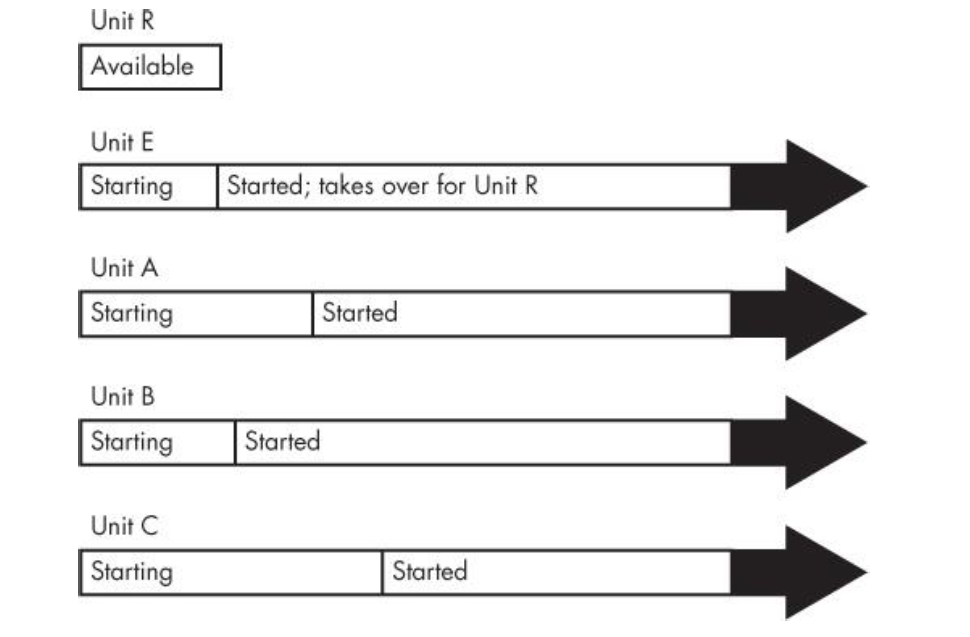
Key Concept
- Units A, B, C, E → Actual services/daemons that need to start during boot.
- Unit R → A resource unit (not a real service/process). It acts as a placeholder or stand-in for something that Unit E provides (e.g., a listening socket, a D-Bus name, a readiness signal, or an interface).
- Unit E → The service that actually provides the resource (e.g., the daemon that opens a socket, starts a database listener, or acquires a D-Bus name).
The timeline shows:
- Unit R is marked “Available” from the very beginning (even before boot reaches user space fully).
- Units A, B, C, and E all begin starting in parallel right away.
- Unit E starts up normally, but systemd provides a fake/temporary interface for Unit R while E is still initializing.
- Once Unit E finishes startup and is truly ready, it takes over from the placeholder Unit R (the real resource becomes available).
- Units A, B, C (and any others that depend on R) can proceed without waiting for E to finish — they use the placeholder if needed early, or the real resource if they access it later.
Shutting down your system
High- Level Overview:
No matter the init system, shutdown/reboot follows roughly these steps:
- User/admin triggers the action (e.g., shutdown, reboot, poweroff, or GUI button).
- Init (PID 1) receives the signal or command.
- Services are stopped in reverse dependency order (or as configured).
- Filesystems are unmounted (or remounted read-only).
- Swap is disabled.
- Final sync to disk.
- Kernel is told to halt, power off, or reboot.
Useful commands
1
2
3
4
5
6
7
8
9
10
11
12
13
14
15
16
17
# Normal shutdown / power off
sudo systemctl poweroff

# Reboot now
sudo systemctl reboot

# Sleep / suspend laptop
systemctl suspend

# Schedule shutdown in 10 minutes
sudo shutdown -h +10 "System will shut down in 10 minutes"

# Cancel scheduled shutdown
sudo shutdown -c

# Force (emergency only – may lose data!)
sudo systemctl poweroff --force
Next we will look at System Configuration: Logging, System Time, Batch Jobs and Users.