Linux - System Configuration
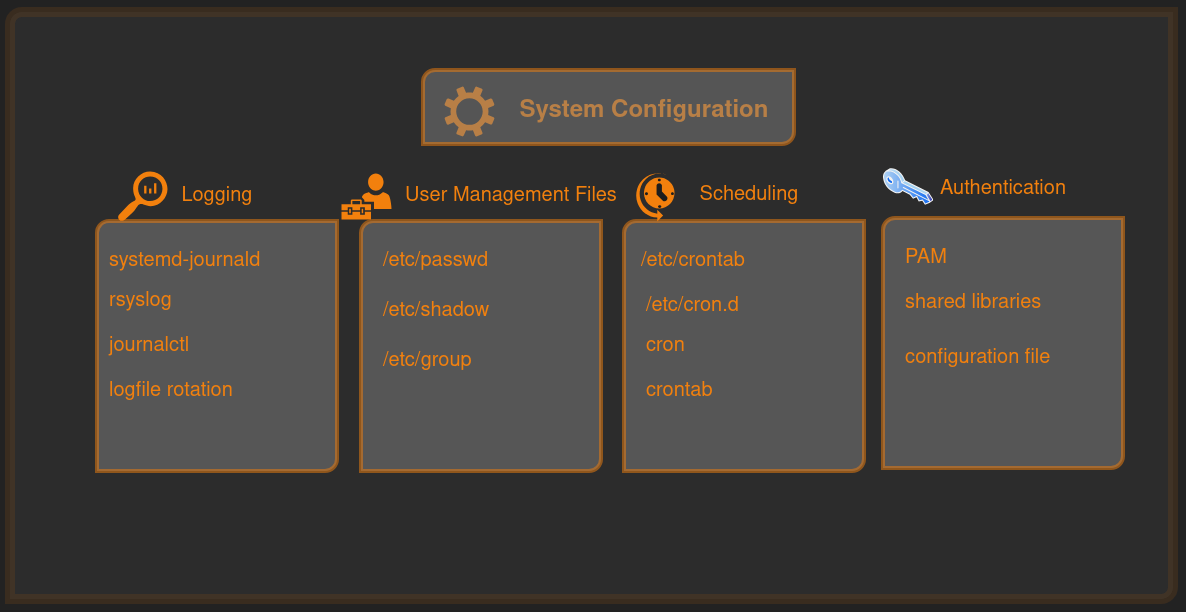
Here we will start with the structure of /etc then we will move on to system logging, user management, cron job and working of PAM.
The structure of /etc
Everything in here is meant to be human-readable text files or subdirectories that control how the entire system behaves. It is system-wide (applies to all users), owned by root, and survives reboots.
1
2
3
4
$ ls -F /etc
NetworkManager/         gtk-3.0/              python3/
apt/                    issue.net             rcS.d/
bash.bashrc             kernel/               resolv.conf@
Extra
1
2
3
4
5
6
7
8
9
10
$ ls -F /etc

-F: The option (flag) that adds a character to the end of each listed item to identify its type:

    /: Indicates a directory.
    *: Indicates an executable file.
    @: Indicates a symbolic link.
    |: Indicates a named pipe (FIFO).
    =: Indicates a socket.
    (no symbol): Indicates a regular file.
Difference between /etc/systemd/ and /usr/lib/systemd
/usr/lib/systemd/ = factory defaults from packages (hands off!)
/etc/systemd/ = your custom layer that overrides everything else (this is where the action happens)
System Logging
Modern Linux (pretty much everything since ~2015) uses two complementary logging systems that often run side-by-side:
- systemd-journald — the native, binary, structured logger built into systemd (default on virtually all current distributions)
- rsyslog (or sometimes syslog-ng) — the traditional text-based syslog daemon, still widely used for compatibility, file-based logs, remote logging, and enterprise habits
Searching and Monitoring Logs
journalctl is the primary tool for querying and displaying logs from the systemd journal (managed by systemd-journald).
It reads binary journal files (usually in /var/log/journal/ if persistent, or /run/log/journal/ if volatile) and presents them in a human-readable way, with rich filtering options.
- Basic Usage and Navigation
1
2
3
4
5
 journalctl                  # Show all logs (oldest first, paged in less/more)
 journalctl -e               # Jump to the end (newest entries first — most common)
 journalctl -r               # Reverse order (newest first)
 journalctl -n 100           # Last 100 lines
 journalctl -f               # Follow / tail -f mode (real-time monitoring)
- Time-based Filtering
1
2
3
4
5
6
 journalctl --since "2026-03-12 18:00"          # From specific date/time
 journalctl --since "yesterday"                 # Since midnight yesterday
 journalctl --since "1 hour ago"                # Last hour
 journalctl --since "2026-03-10" --until "2026-03-11 23:59"
 journalctl --since today -u ssh                # Today’s SSH logs only
 journalctl -S "2 days ago" -U now              # Shorthands: -S = --since, -U = --until
- Boot-based Filtering
1
2
3
4
5
 journalctl -b                   # Current boot only (most common)
 journalctl -b -1                # Previous boot
 journalctl -b -2                # Two boots ago
 journalctl --list-boots         # Show all available boots with IDs and times
 journalctl -b 156019a44a774a0b  # By boot ID (from --list-boots)
- Service/Unit Filtering
1
2
3
4
 journalctl -u ssh               # All sshd.service logs
 journalctl -u nginx.service -u php-fpm.service  # Multiple units
 journalctl -u "nginx*"          # Wildcard (all nginx-related units)
 journalctl -u ssh --since "1 hour ago" -f   # SSH last hour + follow live
Priority/Severity Filtering
Priorities (0–7, lower number = more severe):
1
 0 emerg, 1 alert, 2 crit, 3 err, 4 warning, 5 notice, 6 info, 7 debug
1
2
3
4
5
 journalctl -p err               # Errors and worse (err, crit, alert, emerg)
 journalctl -p err -b            # Errors this boot
 journalctl -p 3..1              # Range: critical (1) to error (3)
 journalctl -p warning..emerg    # By name range
 journalctl -p debug -u myapp    # Debug level for specific service
- Other Common Filtering
1
2
3
4
5
6
7
8
9
10
 journalctl -k                   # Kernel messages only (like dmesg)
 journalctl _PID=1234            # By process ID
 journalctl _UID=1000            # By user ID (your user)
 journalctl _COMM=sshd           # By command name
 journalctl _SYSTEMD_UNIT=nginx.service  # Explicit field match
 journalctl grep "error\|failed" # Simple text search (case insensitive with -i)
 journalctl -g "authentication failure"  # Grep-style (same as above)
 journalctl -o json-pretty       # Structured output (JSON)
 journalctl -o verbose           # Show all fields (great for debugging)
 journalctl -x                   # Add explanations/catalog messages where available
- Real Time Monitoring
1
2
3
 journalctl -f
 journalctl -u ssh -f -g "Failed password" # Watch SSH attempts live (great for spotting brute-force)
 journalctl -kf -p err # Watch kernel + errors live this boot
Logfile Rotation
Logfile rotation in Linux manages growing log files by periodically “rotating” them: renaming the current log (e.g., /var/log/syslog → /var/log/syslog.1), creating a fresh empty log file for new entries, optionally compressing old ones (.gz), and eventually deleting the oldest ones to prevent disk exhaustion.
Core components of Log Rotation
Main config →
/etc/logrotate.confSets global defaults (e.g., weekly rotation, keep 4 old files, compress, create new file with 0640 permissions).
Package/service configs →
/etc/logrotate.d/(directory)- Most real rules live here (one file per service, e.g., rsyslog, nginx, apache2, journald).
- Packages install their own rotation rules here automatically.
Execution mechanism
- Debian/Ubuntu family: Usually a script in
/etc/cron.daily/logrotate(runs via anacron or cron once per day). - Fedora/RHEL family: Same approach —
/etc/cron.daily/logrotatescript, but sometimes systemd timers can be involved in newer setups.
- Debian/Ubuntu family: Usually a script in
User Management Files
Linux handles user accounts using a few key plaintext configuration files in /etc/. These files map human-friendly usernames to the numeric IDs the kernel actually uses, store authentication data, and define groups for permissions.
/etc/passwd -The main user account database
1
2
3
 # username:password:UID:GID:GECOS:home_directory:shell

 karking:x:1000:1000:Karking User,,,:/home/karking:/bin/bash
The password field can be:
xmeaning look in/etc/shadow*means account is locked/disabled::blank field means no password at all
/etc/shadow - secure password and account expiry store
1
2
3
4
 # username:encrypted_password:lastchg:min:max:warn:inactive:expire:reserved

 root:$6$abc123...longhash...:18973:0:99999:7:::
 karking:$6$xyz456...anotherhash...:19500:0:99999:7:::
Only root (and certain privileged processes) can read it. It stores the actual encrypted passwords plus password-ageing rules.
/etc/group - Group Definitions
Groups let multiple users share files without giving everyone full access. Each group has a name and a GID.
1
2
3
4
5
 # group_name:group_password:GID:user_list

 root:*:0:juser
 daemon:*:1:
 users:*:1000:alice,bob,carol
Special Users
Special users (also called pseudo-users or system users) in Linux are accounts that do not correspond to real human beings. They exist so that system services, daemons, and files can run with specific, limited privileges instead of running everything as root.
Typical special users in /etc/passwd
- root (UID 0) — Superuser / administrator
- daemon (UID 1) — Generic system daemon user
- bin (UID 2) — Owner of legacy binary directories (mostly historical)
- man (UID 6) — Owns manual page files
passwd command
1
2
# Basic Use
$ passwd
1
2
3
4
5
6
$ passwd
Changing password for karking.
Current password: ********
New password: ****************
Retype new password: ****************
passwd: password updated successfully
1
2
# Change another user's password (as root or with sudo)
$ sudo passwd username
passwd usecase
| Command | What it does | Who can use it | Example |
|---|---|---|---|
passwd | Change your own password | Any user | passwd |
sudo passwd username | Change another user’s password | Root / sudo | sudo passwd alice |
sudo passwd -l username | Lock the account (puts ! in front of the hash) | Root only | sudo passwd -l bob |
sudo passwd -u username | Unlock the account | Root only | sudo passwd -u bob |
sudo passwd -d username | Delete the password (makes login passwordless – dangerous!) | Root only | sudo passwd -d test |
sudo passwd -e username | Expire the password (forces user to change it on next login) | Root only | sudo passwd -e alice |
sudo passwd -S username | Show password status (shows if locked, last change date, etc.) | Root only | sudo passwd -S karking |
passwd -S | Show password status for your own account | Any user | passwd -S |
Scheduling recurring task with cron
Cron is the classic Linux tool for running commands or scripts automatically at fixed times, dates, or intervals — no need to be logged in. It is perfect for backups, log rotation, system cleanup, monitoring, reminders, or any repetitive admin task.
How Cron Works?
- A daemon called crond (cron daemon) wakes up every minute and checks all scheduled jobs.
- Jobs are defined in crontab files (cron table).
- There are two main types:
- User crontabs — per-user (you edit with
crontab -e) - System crontabs — usually in
/etc/crontabor/etc/cron.d/,/etc/cron.daily/, etc. (managed by packages or root)
- User crontabs — per-user (you edit with
Syntax
1
minute  hour  day-of-month  month  day-of-week   command-to-run
| Field | Allowed values | Special characters | Meaning |
|---|---|---|---|
| minute | 0–59 | * , - / | Minute of the hour |
| hour | 0–23 | * , - / | Hour of the day (24-hour format) |
| day-of-month | 1–31 | * , - / | Day of the month |
| month | 1–12 (or JAN–DEC) | * , - / | Month of the year |
| day-of-week | 0–7 (0 or 7 = Sunday) | * , - / | Day of the week |
| command | Any valid shell command | (full path recommended) | What actually runs |
What the special characters mean? Special characters explained:
- ‘*’ = every possible value (e.g., * in minute = every minute)
- ’,’ = list of values (e.g., 0,15,30,45 = at :00, :15, :30, :45)
- ’-‘ = range (e.g., 9-17 in hour = 9 AM to 5 PM)
- ’/’ = step (e.g., */15 in minute = every 15 minutes)
How to edit and manage your cron tab
| Command | What it does | Notes |
|---|---|---|
crontab -e | Edit your personal crontab (safest way) | Opens in your default editor (vim/nano) |
crontab -l | List (view) your current crontab | Just prints it |
crontab -r | Remove (delete) your entire crontab | Careful — no undo! |
sudo crontab -e | Edit root’s crontab | For system-wide jobs |
crontab -u username -e | Edit another user’s crontab (as root) | Rare, but useful |
User Identification and Authentication
- You type username at the login prompt - Identification starts
- System asks for password - Authentication via PAM (checks
/etc/shadowusingpam_unix.soor other modules) - If successful - your shell starts with your real UID, and Authorization is enforced for every command/file access
Useful Commands
1
2
3
4
5
# See your full identity
$ id

# Output
uid=1000(butcher) gid=1000(butcher) groups=1000(butcher),4(adm),20(dialout),24(cdrom),25(floppy),27(sudo),29(audio),30(dip),44(video),46(plugdev),100(users),107(netdev)
1
2
3
4
5
6
7
# Who is logged in right now (shows real vs effective if switched)

$ whoami
# Output : butcher

$ who -u
# Output : butcher  pts/1        2026-03-25 13:33 02:56         731
1
2
3
4
5
6
7
8
9
10
11
# Check last logins (authentication history)
$ last

# Output
reboot   system boot  6.6.87.2-microso Wed Mar 25 13:33   still running
butcher  pts/5        tmux(415426).%0  Wed Mar 18 15:51 - 15:52  (00:00)
butcher  pts/5        tmux(415293).%0  Wed Mar 18 15:51 - 15:51  (00:00)
reboot   system boot  6.6.87.2-microso Mon Mar 16 15:37   still running
reboot   system boot  6.6.87.2-microso Thu Mar 12 11:33   still running
...
...
1
2
# See failed login attempts
$ sudo lastb
PAM- Pluggable Authentication Module
It is a system of shared libraries for authentication. It is the middleman that lets Linux programs outsource user authentication to a flexible, stack-based system of plug-in modules.
Because there are many kinds of authentication scenarios, PAM employs a number of dynamically loadable authentication modules. Each module performs a specific task; for example, the pam_unix.so module can check a user’s password.
Core Idea of PAM
Shared Libraries : PAM is a set of shared libraries (modules) located in
/lib/*/security/or/usr/lib/*/security/1 2 3 4 5 6 7 8 9 10 11
# shared libraries $ ls -F /lib/*/security # Output pam_access.so pam_group.so pam_permit.so pam_systemd_loadkey.so pam_cap.so pam_issue.so pam_pwhistory.so pam_time.so pam_debug.so pam_keyinit.so pam_rhosts.so pam_timestamp.so pam_deny.so pam_limits.so pam_rootok.so pam_tty_audit.so pam_echo.so pam_listfile.so pam_securetty.so pam_umask.so ... ...
- Configuration Files : Configuration files in
/etc/pam.d/tell each service (login, sudo, sshd, etc.) which modules to use and in what order1 2 3 4 5 6 7
$ ls -F /etc/pam.d # Output: chfn common-auth cron passwd su-l chpasswd common-password login runuser sudo chsh common-session newusers runuser-l sudo-i common-account common-session-noninteractive other su
- PAM organizes authentication into four management groups (stacks)
- auth
- account
- password
- session
How a PAM Configuration File Looks
1
type    control-flag    module-name    [arguments]
Example - typical /etc/pam.d/login (simplified)
1
2
3
4
5
6
7
8
9
10
% cat /etc/pam.d/login

# Output
auth       required     pam_securetty.so
auth       include      system-auth
account    required     pam_nologin.so
account    include      system-auth
password   include      system-auth
session    include      system-auth
session    optional     pam_motd.so
Control Flag
- required = “must pass, but keep going”
- requisite = “must pass right now or stop”
- sufficient = “if this passes and nothing bad happened before, we’re good”
- optional = “nice to have, but not important”
Next we will explore the process and resource utilization. Stay tuned..