tmux- terminal multiplexer
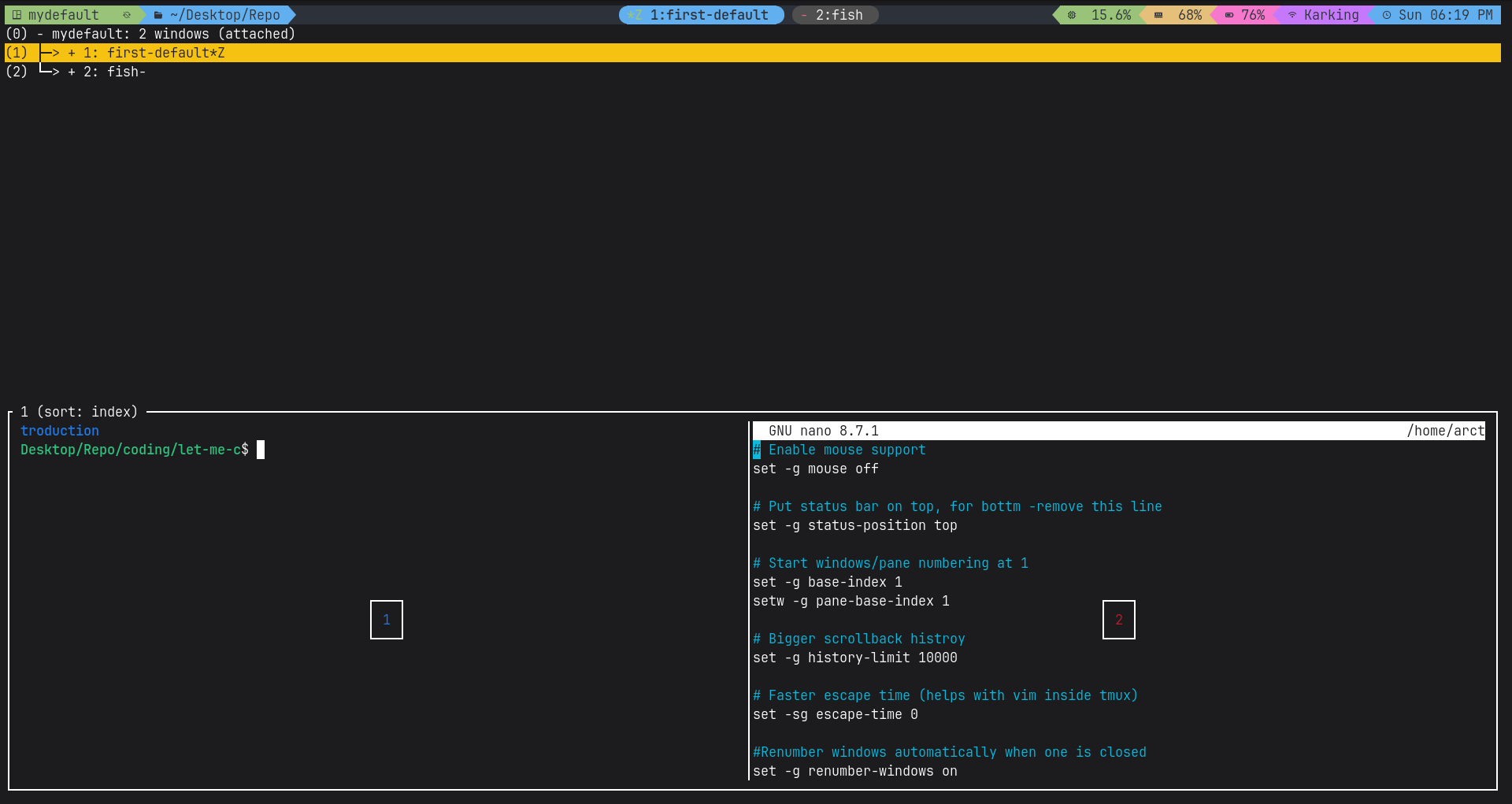
Why use tmux? - It lets you run terminal sessions that keep going even after you disconnect, so you can detach, close your laptop, and pick up right where you left off later. It also splits your terminal into multiple panes and windows, so you can run several things side by side without juggling separate terminal windows.
Now let’s dive in. Here is a practical reference for learning tmux, based on the official tmux wiki Getting Started guide, without getting into the weeds.
The Big Idea
tmux lets one terminal window contain multiple independent terminal sessions that keep running even if you disconnect. Think of it as a window manager that lives inside your terminal.
The hierarchy is: session → windows → panes
- A pane = one terminal running a program
- A window = one or more panes (like a browser tab)
- A session = one or more windows (a whole workspace)
The Prefix Key
Almost every tmux command starts with the prefix key: Ctrl+b by default. You press Ctrl+b, release it, then press the next key. So C-b c means “press Ctrl+b, let go, then press c.”
Step 1 — Start Your First Session
1
tmux new -s mysession
This creates and attaches a session named mysession. You’ll see a green status bar appear at the bottom.
Step 2 — Detach and Reattach (the killer feature)
1
C-b d        # detach — back to your normal shell, tmux keeps running
1
2
tmux ls                  # list sessions
tmux attach -t mysession # reattach
This is the whole point: start a long job, detach, close your laptop, come back later (or from another machine) and reattach to find it still running.
Step 3 — Windows (like tabs)
| Keys | Action |
|---|---|
C-b c | create new window |
C-b n / C-b p | next / previous window |
C-b 0…9 | jump to window by number |
C-b , | rename current window |
C-b w | visual window list |
C-b & | kill current window |
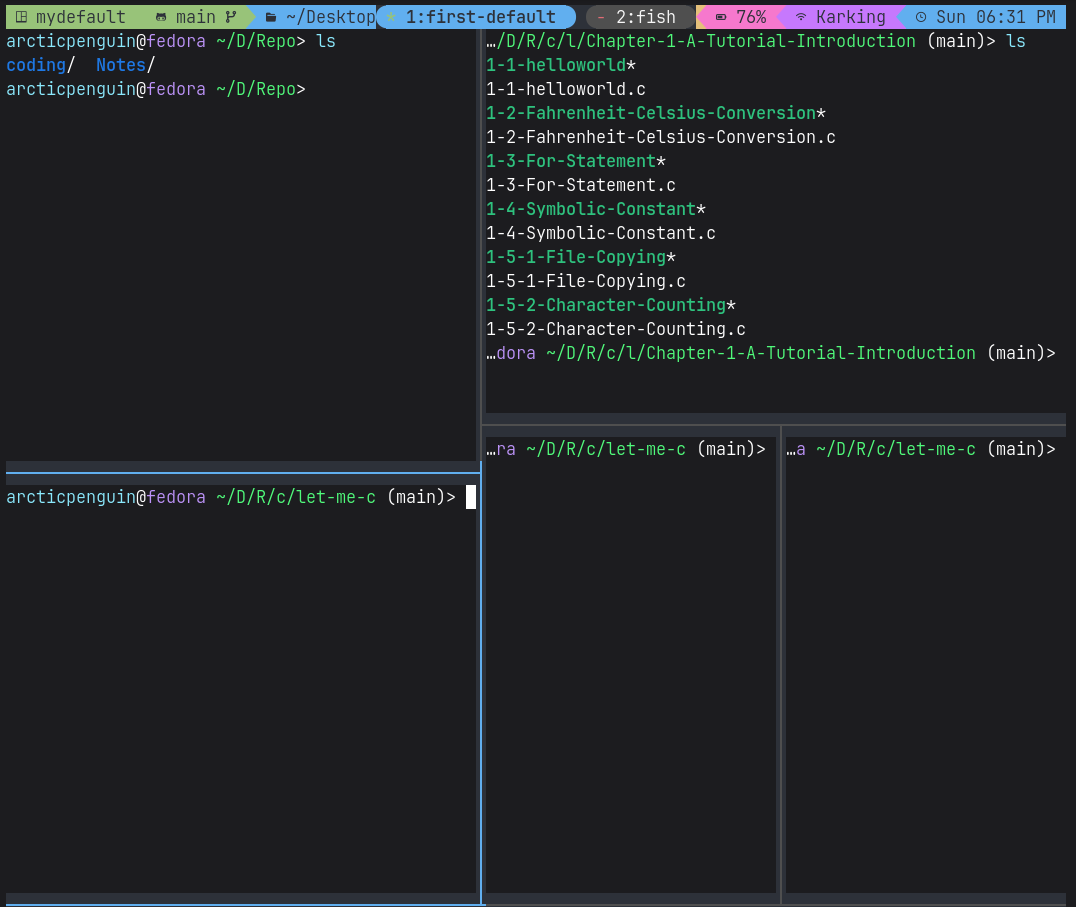
Step 4 — Panes (split a window)
| Keys | Action |
|---|---|
C-b % | split vertically (left/right) |
C-b " | split horizontally (top/bottom) |
C-b ←↑→↓ | move between panes |
C-b o | cycle to next pane |
C-b z | zoom pane fullscreen (toggle) |
C-b x | kill current pane |
C-b Space | cycle through layouts |
Step 5 — Copy Mode (scrolling & copying text)
1
2
3
4
5
C-b [        # enter copy mode (also lets you scroll up)
Space        # start selection
Enter        # copy selection, exit
C-b ]        # paste
q            # exit copy mode without copying
A Quick First Config (~/.tmux.conf)
A few changes almost everyone makes early on:
1
2
3
4
5
6
7
8
9
# Enable mouse (click to switch panes, drag to resize, scroll to view history)
set -g mouse on

# Start window/pane numbering at 1 instead of 0
set -g base-index 1
setw -g pane-base-index 1

# Bigger scrollback history
set -g history-limit 10000
After editing, reload it without restarting tmux:
1
2
C-b :
source ~/.tmux.conf
Suggested Practice Flow
tmux new -s practiceC-b "(split horizontal), thenC-b %(split one of those vertically)C-b ←/→/↑/↓to bounce between panesC-b cto make a second window,C-b 1/C-b 2to jump between themC-b dto detachtmux attach -t practiceto come back
Deep Dive
1. How to kill all the sessions and start from the beginning
1
2
3
4
5
6
7
tmux kill-server

tmux kill-session -t session_name #Kill one by one

tmux kill-session -a # kill all except the one you're currently attached to

tmux kill-session -a -t session_to_keep # Kill all except a specific named one
2. Rename the window
1
2
tmux rename-window preferred_name
tmux rename-window -t mysession:1 mynewname
3. Adding plugins
First clone TPM:
1
git clone https://github.com/tmux-plugins/tpm ~/.tmux/plugins/tpm
Put this at the bottom of ~/.tmux.conf
1
2
3
4
5
6
7
8
9
10
11
12
13

# List of plugins
set -g @plugin 'tmux-plugins/tpm'
set -g @plugin 'tmux-plugins/tmux-sensible'

# Other examples:
# set -g @plugin 'github_username/plugin_name'
# set -g @plugin 'github_username/plugin_name#branch'
# set -g @plugin 'git@github.com:user/plugin'
# set -g @plugin 'git@bitbucket.com:user/plugin'

# Initialize TMUX plugin manager (keep this line at the very bottom of tmux.conf)
run '~/.tmux/plugins/tpm/tpm'
Reload TMUX environment so TPM is sourced:
1
2
3
4
5
6
# type this in terminal if tmux is already running
tmux source ~/.tmux.conf

OR

C-b : source ~/.tmux.conf
Install the plugin (TPM fetches it):
1
C-b I
Open Sidebar
1
2
3
C-b Tab
C-b Backspace # toggle side bar, focus it
C-b -> # (while sidebar focused) Open file/expand folder
My ~/.tmux.conf file
1
2
3
4
5
6
7
8
9
10
11
12
13
14
15
16
17
18
19
20
21
22
23
24
25
26
27
28
29
30
# Put status bar on top, for bottm -remove this line
set -g status-position top

# Start windows/pane numbering at 1
set -g base-index 1
setw -g pane-base-index 1

# Bigger scrollback histroy
set -g history-limit 10000

# Faster escape time (helps with vim inside tmux)
set -sg escape-time 0

#Renumber windows automatically when one is closed
set -g renumber-windows on

# List of plugins
set -g @plugin 'tmux-plugins/tpm'
set -g @plugin 'tmux-plugins/tmux-sensible'

# plugin for sidebar tree
set -g @plugin 'tmux-plugins/tmux-sidebar'
# plugin for status bar
set -g @plugin '2kabhishek/tmux2k'
set -g @tmux2k-theme 'onedark'
set -g @tmux2k-icon-only true

# Initialize TMUX plugin manager (keep this line at the very bottom of tmux.conf)
run '~/.tmux/plugins/tpm/tpm'
Reference
Full documentation: tmux Getting Started Wiki